Instagram is one of the most competitive visual platforms today. Every second, users scroll past dozens of posts, stories, and ads. If your content doesn’t grab attention within 2–3 seconds, it’s gone. This is where PNG elements become a powerful design weapon. When used correctly, PNGs can instantly upgrade your posts, make them more eye-catching, and stop users mid-scroll.
In this article, you’ll learn how to design scroll-stopping Instagram posts using PNG elements, even if you’re not a professional designer. This guide is user-friendly, practical, and beginner-friendly, with clear tips and image placement suggestions.
What Are PNG Elements and Why They Matter on Instagram?
PNG elements are images with transparent backgrounds, which means you can place them over any design without ugly white boxes. These elements can include:
- Objects (phones, books, arrows, shapes)
- Hand gestures (pointing hands, holding hands)
- Stickers and icons
- Decorative lines, frames, and doodles
- Text highlights and speech bubbles


Why PNGs Work So Well on Instagram?
- They look clean and professional.
- They save time compared to creating illustrations from scratch.
- They add depth and layering, making posts visually rich.
- They guide the viewer’s eyes toward text, faces, or CTAs.
Understanding Scroll-Stopping Design Psychology:
Before placing PNGs randomly, it’s important to understand why people stop scrolling.
- Contrast: Bright elements against soft backgrounds.
- Emotion: Faces, reactions, expressive hand PNGs.
- Direction: Arrows or pointing hands guiding attention.
- Curiosity: Partial frames, cut-out objects, overlays.
- Clarity: Clean layouts that are easy to read.
PNG elements help amplify all these triggers when used intentionally.

Choosing the Right PNG Elements for Your Niche:
Not all PNGs work for every type of content. Choosing the right elements is crucial.
For Educational Posts:
- Highlight boxes
- Underline strokes
- Arrows pointing to key text
- Minimal icons
For Business & Marketing:
- Phone mockups
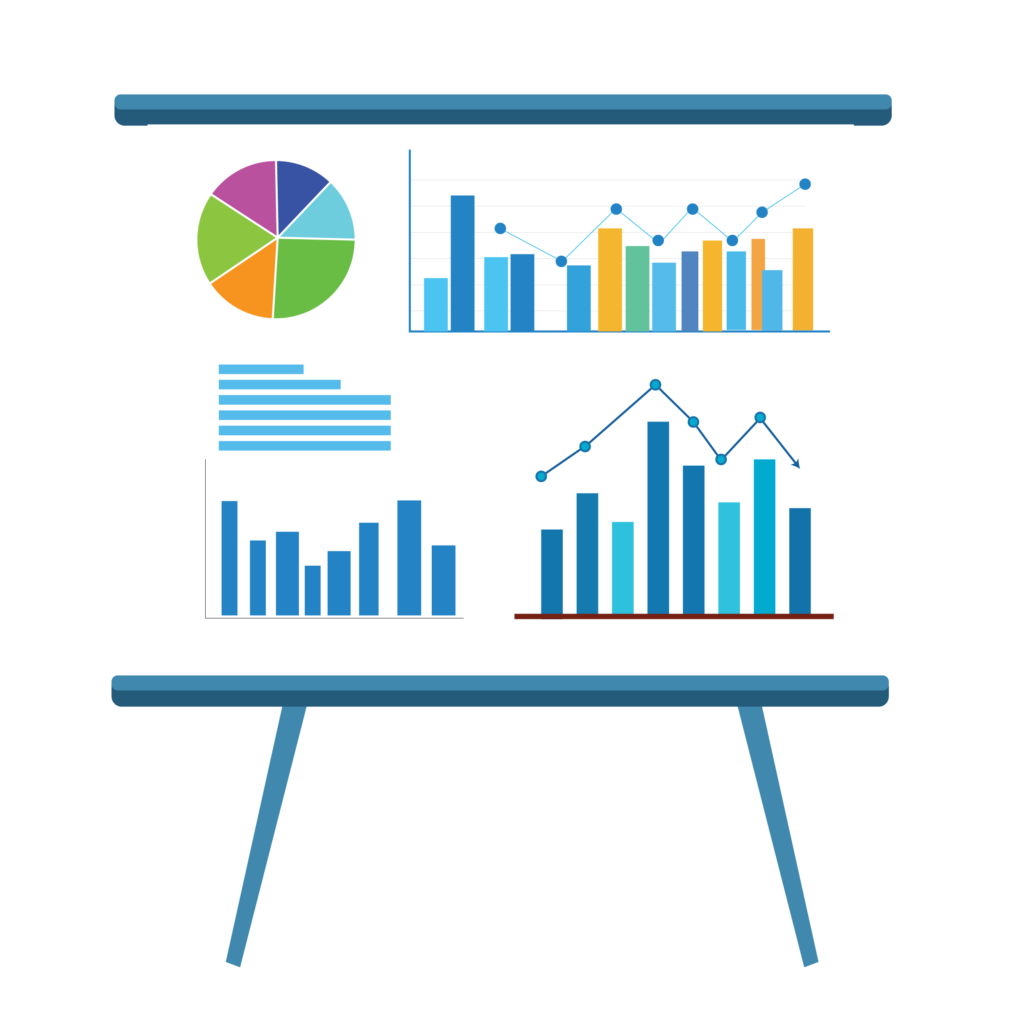
- Charts and symbols
- CTA arrows
- Clean geometric shapes


For Lifestyle & Influencer Content:
- Hand gestures
- Sparkles and doodles
- Soft shadows
- Decorative frames
For Sales & Promotions:
- Price tags
- Discount badges
- Explosion shapes
- Attention-grabbing arrows


Planning Your Instagram Post Layout:
A scroll-stopping post starts with planning, not design software.
- Hook (Top or Center): Main message or bold text.
- Support (Middle): PNG elements to guide focus.
- CTA (Bottom): Arrow, button, or pointing hand.
Always design for mobile first, because over 90% of users view Instagram on their phones.
How to Use PNG Elements Without Overcrowding?
One of the biggest mistakes beginners make is overusing PNGs.
- Use 1–3 main PNG elements per post.
- Keep similar styles together (don’t mix cartoon + realistic).
- Match PNG colors with your brand palette.
- Reduce opacity for background PNGs.
Using PNG Elements to Guide Attention:
One of the strongest uses of PNG elements is visual direction.
- Pointing hands → direct attention to text or CTA.
- Arrows → show reading order.
- Lines & strokes → underline important words.
- Frames → isolate key content.
Adding Depth with Shadows and Overlays:
Flat designs don’t stop scroll anymore. Depth does.
- Drop shadows behind objects.
- Layering PNGs above and below text.
- Overlapping elements slightly.
This creates a 3D-like effect that feels modern and premium.
Text + PNG: The Perfect Balance
Your message still matters. PNGs should support text, not hide it.
- Use bold fonts for headlines.
- Keep text short and readable.
- Avoid placing text on busy PNG areas.
- Use highlight PNGs behind key words.
Designing Carousels Using PNG Elements:
Carousel posts get higher engagement than single posts.
- Use the same PNG style across all slides.
- Add arrows or hand PNGs saying “Swipe →”.
- Use frames to keep visual consistency.
Each slide should feel connected but not repetitive.
Tools You Can Use to Design with PNG Elements:
You don’t need expensive software to start.
Beginner-Friendly Tools:
- Canva
- Photopea
- Adobe Express
- Figma (for advanced users)
Most of these tools allow drag-and-drop PNG usage, making design simple and fast.
Common Mistakes to Avoid:
- Too many PNG elements
- Low-quality or blurry PNGs
- Ignoring brand colors
- Poor alignment
- Copy-paste designs without originality
Final Tips for Creating Scroll-Stopping Instagram Posts:
- Think like a viewer, not a designer.
- Focus on clarity + emotion + direction.
- Use PNG elements with intention.
- Keep testing different styles.
- Save high-performing designs as templates.
When used smartly, PNG elements can dramatically increase engagement, saves, and shares.
Conclusion:
Designing scroll-stopping Instagram posts isn’t about complex tools or advanced skills. It’s about smart visual communication. PNG elements give you flexibility, creativity, and speed—three things every content creator needs.
Start simple. Choose clean PNGs. Focus on clarity. With consistent practice, your Instagram feed will not only look professional but will also stop the scroll and hold attention.